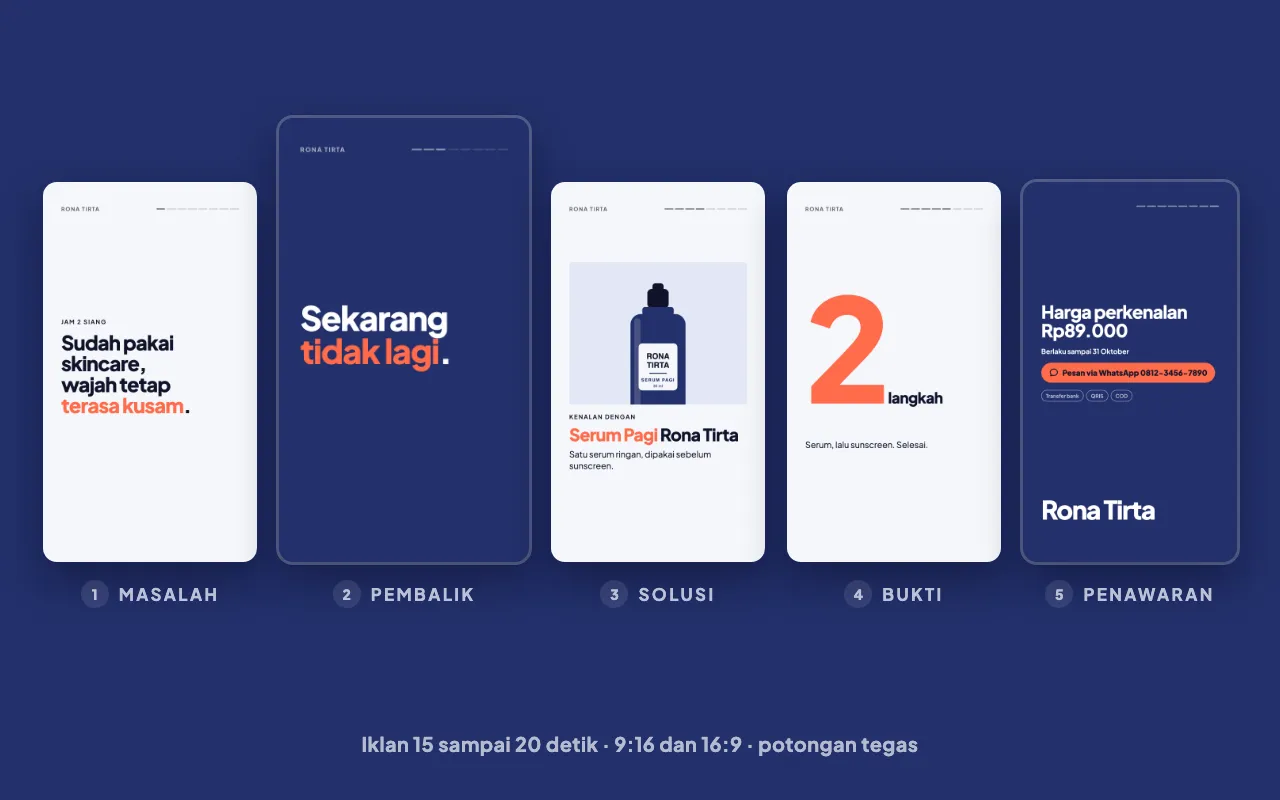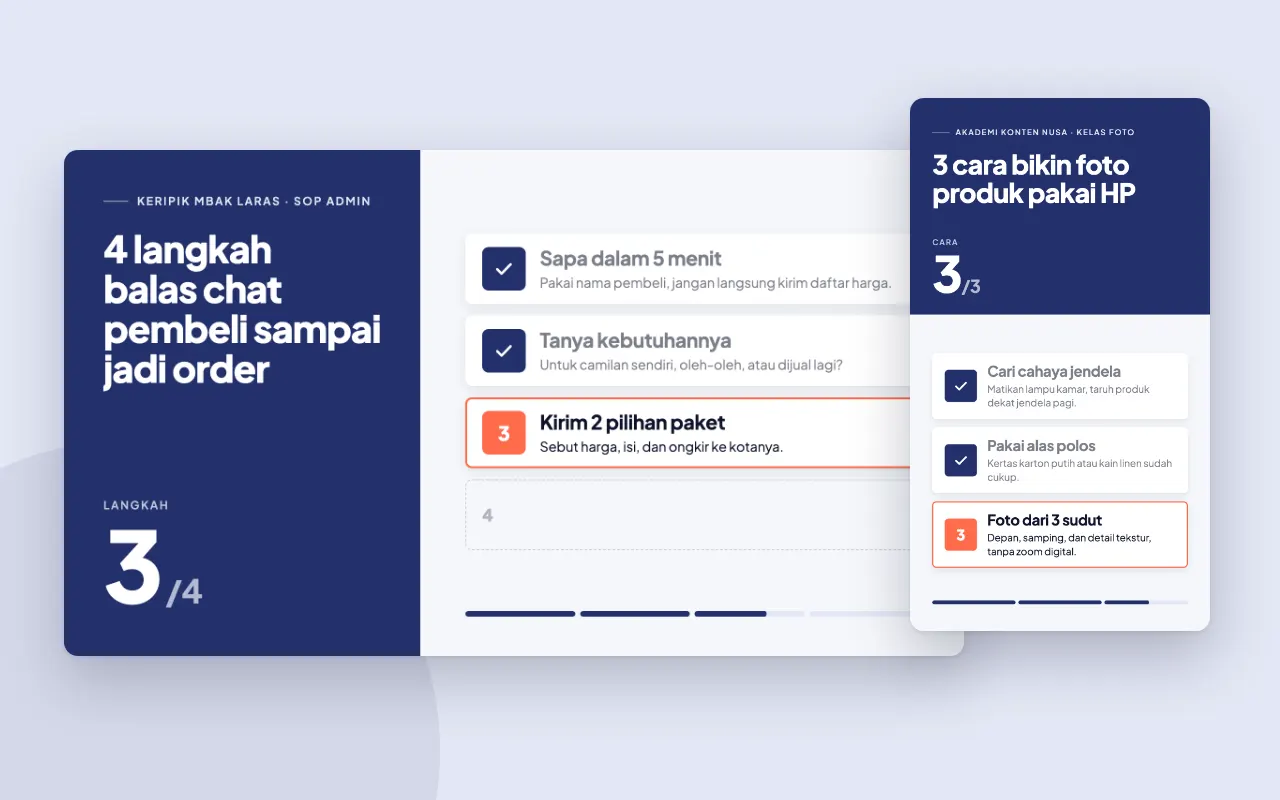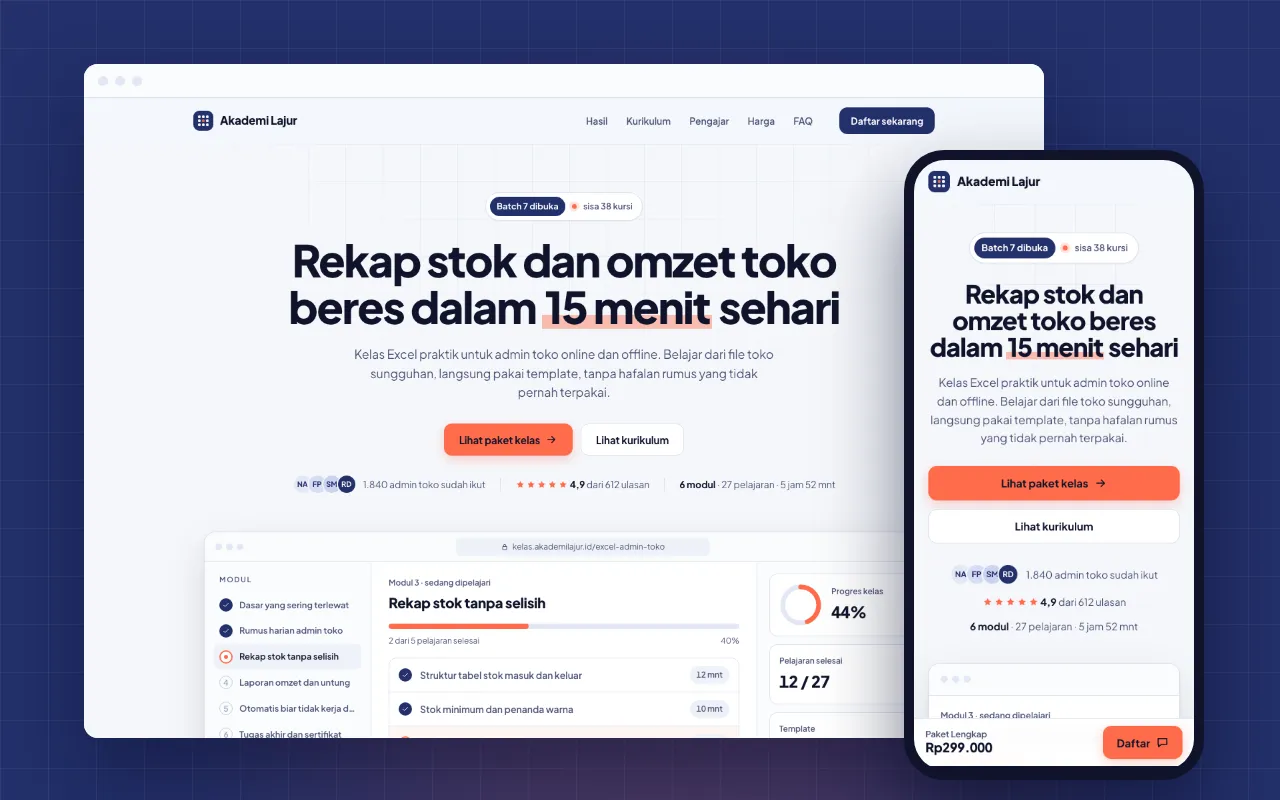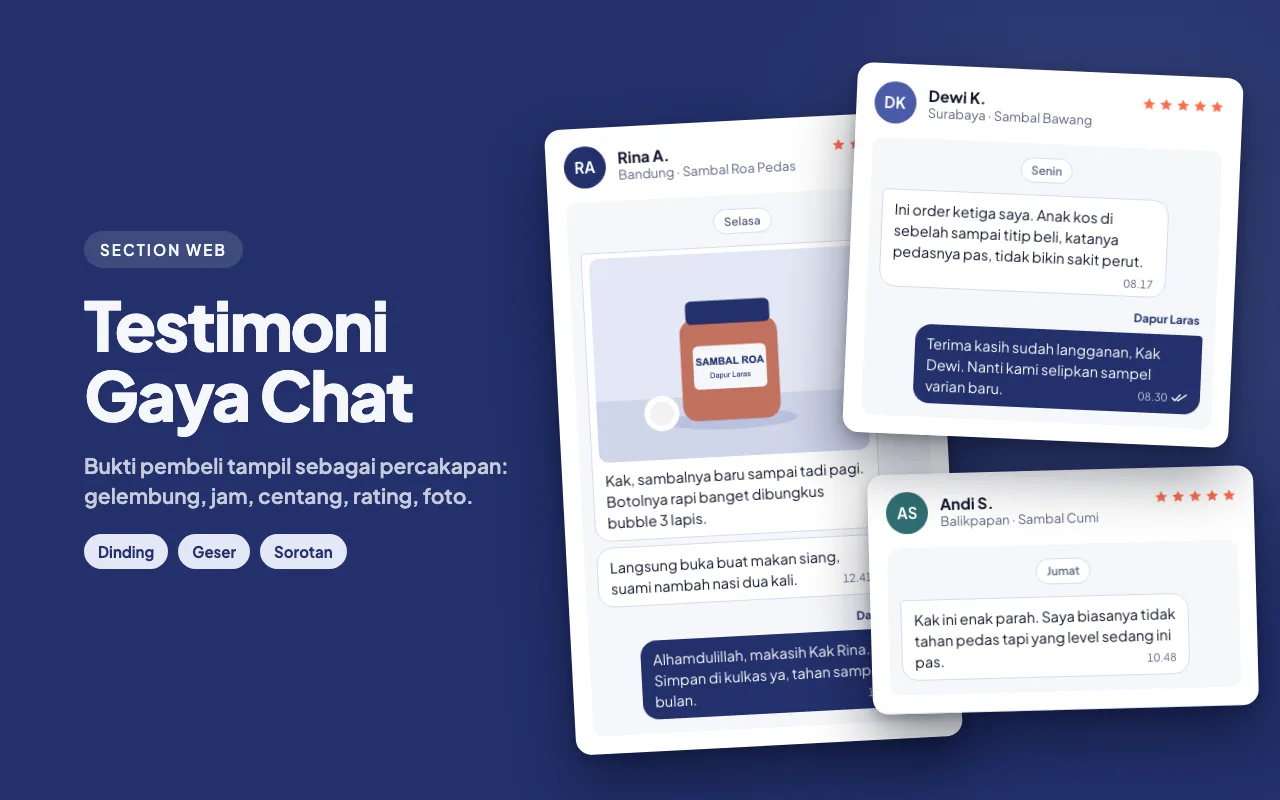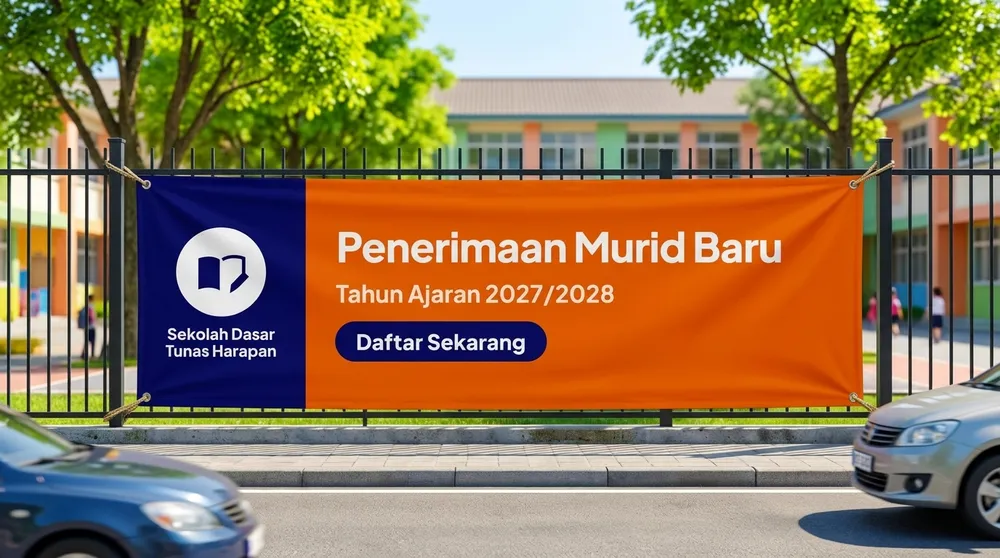
Sekolah Dasar Tunas Harapan, Colourful pop: a new student enrolment banner tied to a school fence at bright midday
SKILL.md contents
Premium subscribers can read, copy, and install this skill.
Unlock with Premium Sign inFabric Street Banner Mockup
Description
A prompt for an image-capable AI chat: attach your horizontal banner design, fill in a few details, and the AI creates a realistic mockup photo of a fabric banner tied to a fence, stretched between bamboo poles, or hung above a door, in front of a school, in a housing lane, a village field, in front of an office, or by a village road. The JSON art director brief uses your details: size, mounting, material, setting, time of day, brand colours in hex, style, camera, lighting, composition, ratio, text rules, and negatives such as folded fabric, other banners, or readable number plates.
Verified by SkillFlow
We checked every file in this skill automatically: no command that downloads and runs a program, no hidden code, no instruction telling your AI to ignore you.
- Loads from outside
- Nothing. Everything it needs is inside the ZIP.
See the 4 files inside
skill.json10 KBSKILL.md10 KBprompt.md9 KBprompt.en.md9 KB
Checked 16 Nov 2026
Part of SkillFlow Pro
Pro opens every skill in every category: copy, ZIP, Send to AI, install, save, and request new skills.
Get Pro Already subscribed? Sign inWhat you get
- A paste-ready prompt for an image-capable AI chat, with your banner design attached
- A JSON art director brief: banner, material, mounting, surroundings, time, camera, lighting, negatives
- A photo of a banner tied to a fence, stretched between bamboo poles, or above a door
- 5 ready styles: Dark luxury, Light minimal, Natural wood, Colourful pop, Studio white
- 5 settings (school, lane, field, office or shophouse, village road), 2 times of day, and 3 camera angles
- Taut fabric with a natural ripple, text never distorted by a fold
- Only one readable banner, with no number plates or clear faces
- An offer of 2 to 3 mounting, setting, or time variations
Good fit
- Schools and courses hanging enrolment banners
- Youth groups, communities, and neighbourhood event teams
- Offices and service businesses hanging an announcement banner outside
Not for
- It does not design the banner; attach your own design (or use the Print-Ready Storefront Banner skill first)
- Not a standing X-banner or roll-up (use the Banner and X-Banner Mockup skill)
- Not a large billboard (use the Billboard Mockup skill)
- Not a print proof: size, print colour, and cut lines are not precise; use a design tool for that
About this skill
/mockup-spanduk-kain Make a mockup photo of a 300 x 100 cm fabric banner tied to a school fence, banner design attached, bright midday, straight on from across the road
Show more
A prompt for an image-capable AI chat: attach your horizontal banner design, fill in a few details, and the AI creates a realistic mockup photo of a fabric banner tied to a fence, stretched between bamboo poles, or hung above a door, in front of a school, in a housing lane, a village field, in front of an office, or by a village road. The JSON art director brief uses your details: size, mounting, material, setting, time of day, brand colours in hex, style, camera, lighting, composition, ratio, text rules, and negatives such as folded fabric, other banners, or readable number plates.
User reviews
FAQ
My banner is very long. Which ratio should I pick?
Pick 16:9 with a straight-on angle from across the road so the long banner fits whole in the photo. Make sure the attached design already has banner proportions (e.g. 300 x 100 = 3:1). If an end gets cut, regenerate from a little further away.
Can I use the result as a print proof?
No. An AI mockup is a concept visual for a catalogue, social media, or a pitch. Text and logos can shift slightly, and size, print colour, and cut lines are not precise. For files going to a printer, use a design tool and your original design file.
What if the logo changes or the text is misspelled?
Ask the AI to regenerate the image with the logo and text rules repeated in the request, rather than asking for a small fix. Attach a sharp PNG logo and keep the extra line as short as possible so it misses less often.
The result only has the brand name in type, without the logo icon. Why?
Usually the logo was not attached. Attach the logo file (a sharp PNG) in the same message as the prompt and check that it shows in the chat box before sending. This prompt asks the AI to check with you first if it cannot see the attachment.
My AI does not have the ratio I picked, and the variation came back identical. What now?
Pick the closest ratio, for example Gemini has no 4:5, so use 3:4. If you ask for a variation and get the same picture back, write "make a NEW image, do not reuse the previous one", or open a new chat with the same prompt.
Which AI can I use it with?
Copy the prompt into a chat AI (ChatGPT, Gemini).
What is in the ZIP?
One folder named mockup-spanduk-kain with SKILL.md (the instructions an AI agent reads) and the prompt, 4 files in all. Extract it into your agent's skills folder, or install it with npx skillflow-ai add mockup-spanduk-kain. Pro only.
Is there a per-use fee or credits?
Not from SkillFlow. The skill runs on the AI you already use, so any cost follows that plan.
Which plan includes it?
SkillFlow Pro. It opens every skill in every category.
Can I use my own colours and brand?
Yes. Pick a colour theme on this page, or fill in your brand profile once; both go into the prompt you copy and into the ZIP.
Can I share what I made?
Pro members can upload the result and get a page at share.skillflow.ai.id to send to anyone. The page carries a small "Made with SkillFlow AI" mark.
Is there a download limit?
Yes, per day: 50 skills on Pro, 10 on other plans. Downloading a skill again on the same day does not count.