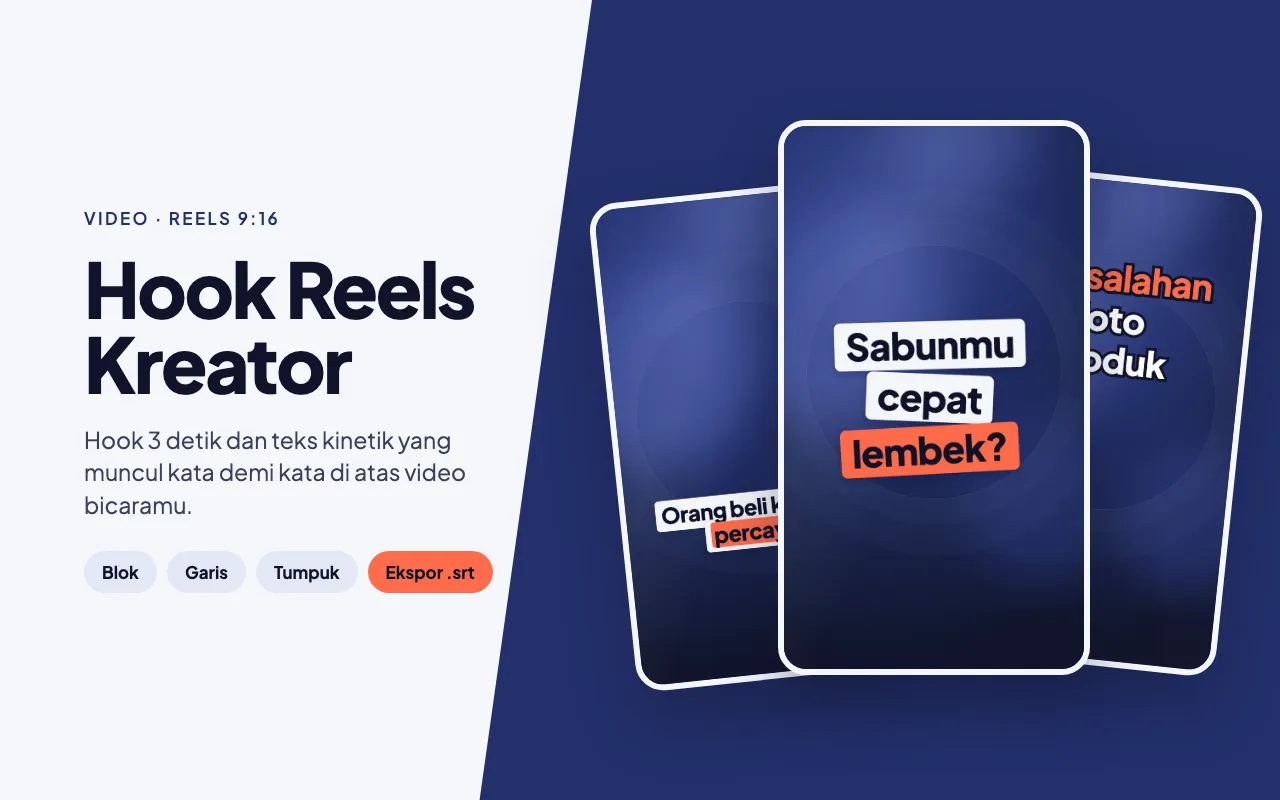
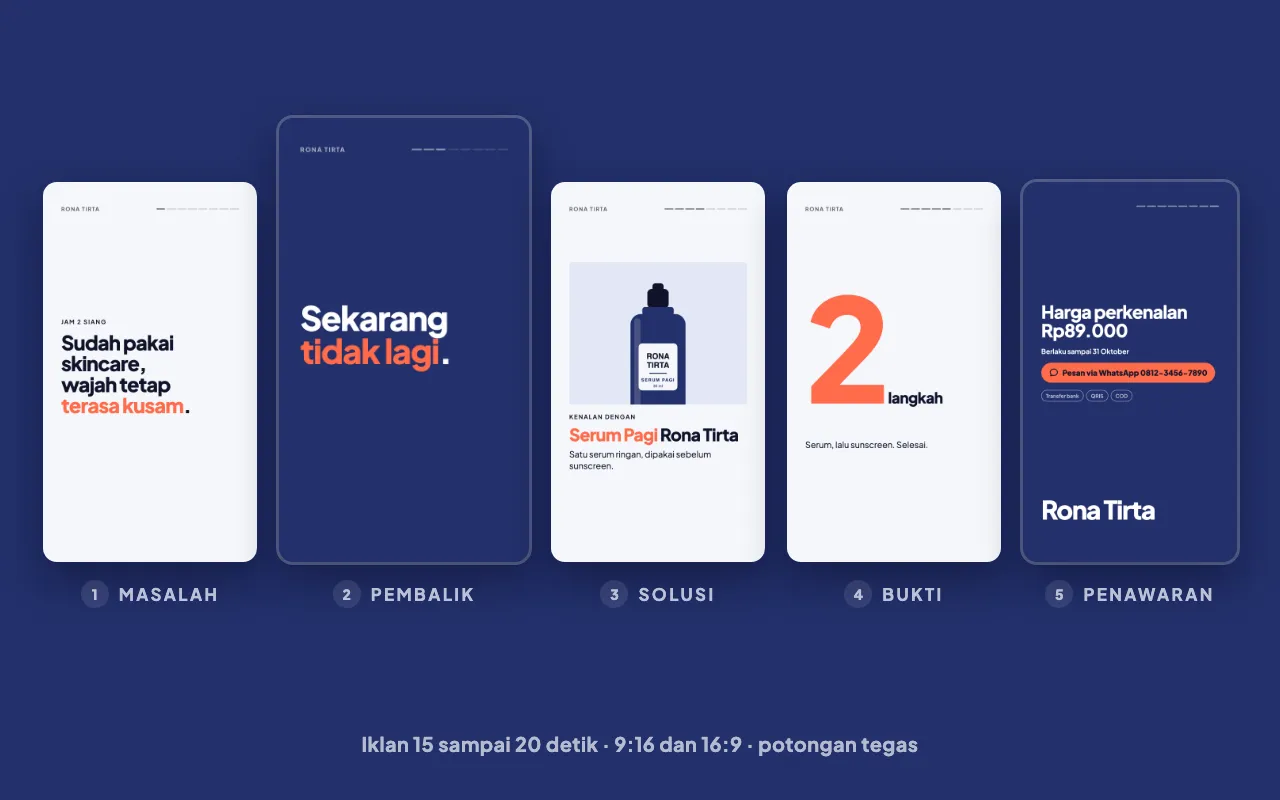
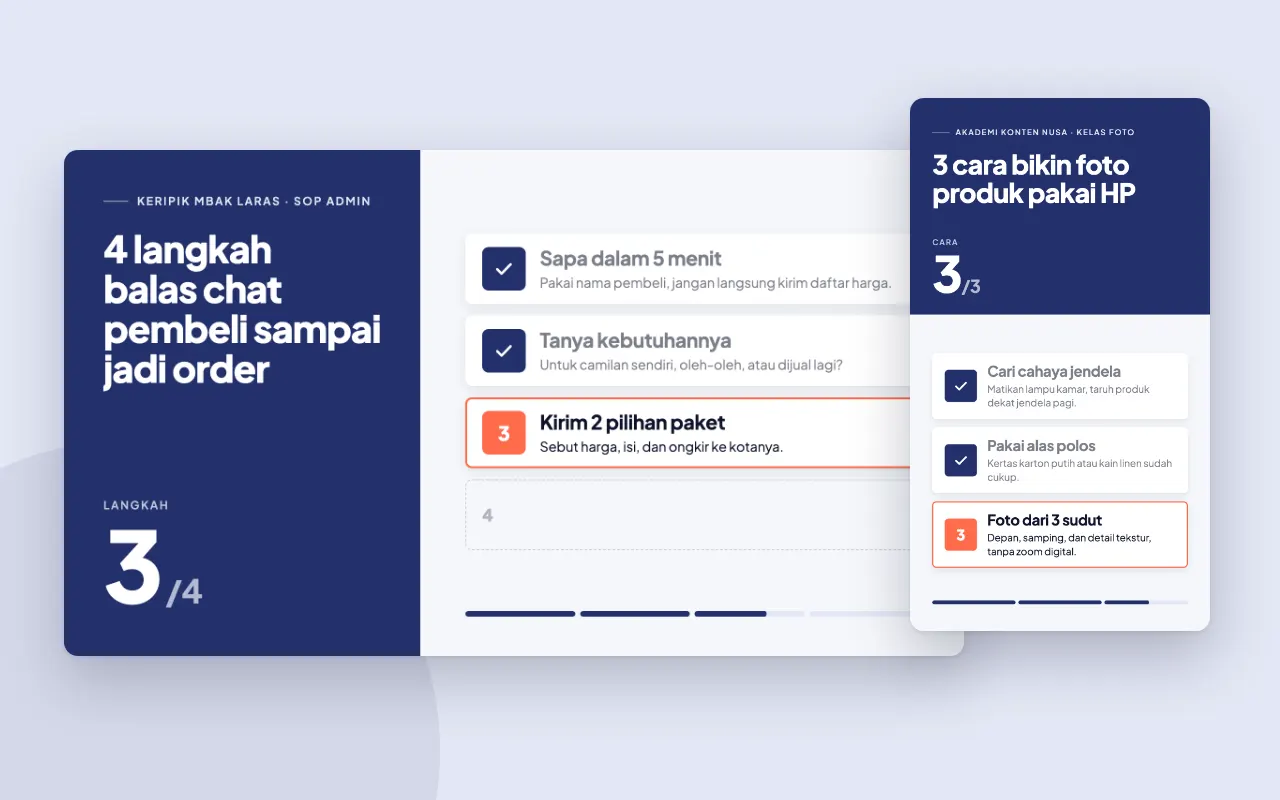
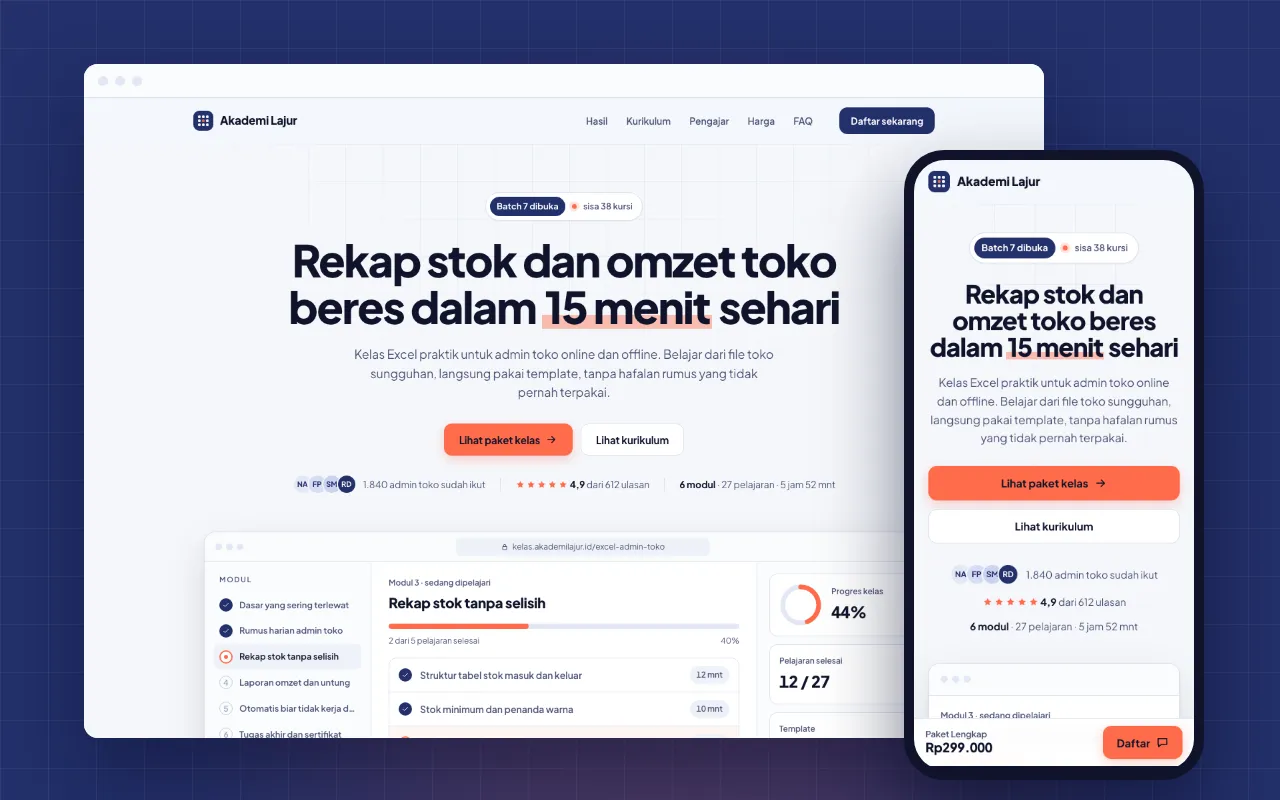
Rendered sample video
SKILL.md contents
Premium subscribers can read, copy, and install this skill.
Unlock with Premium Sign inKeyboard Shortcut Tip
Description
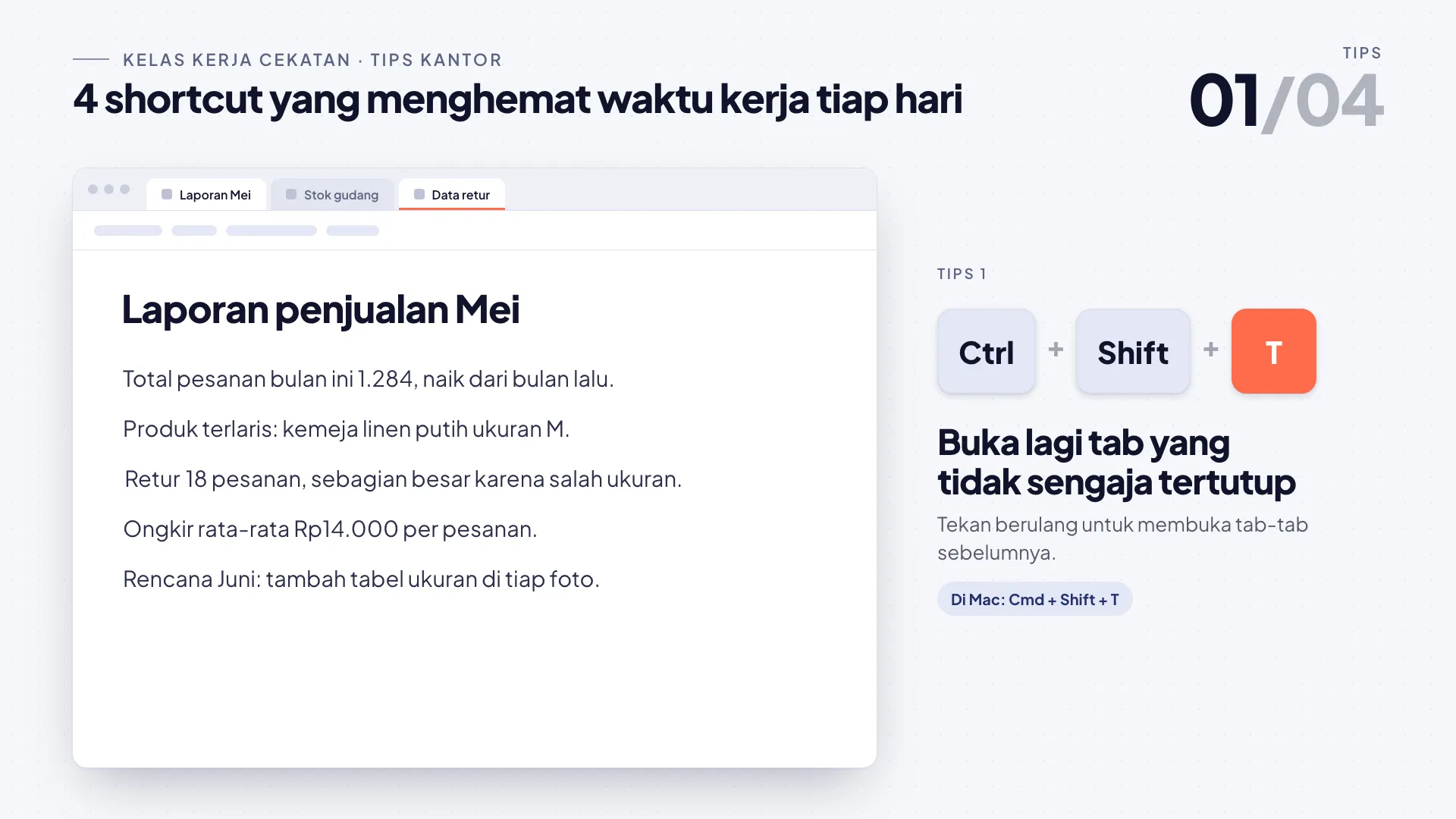
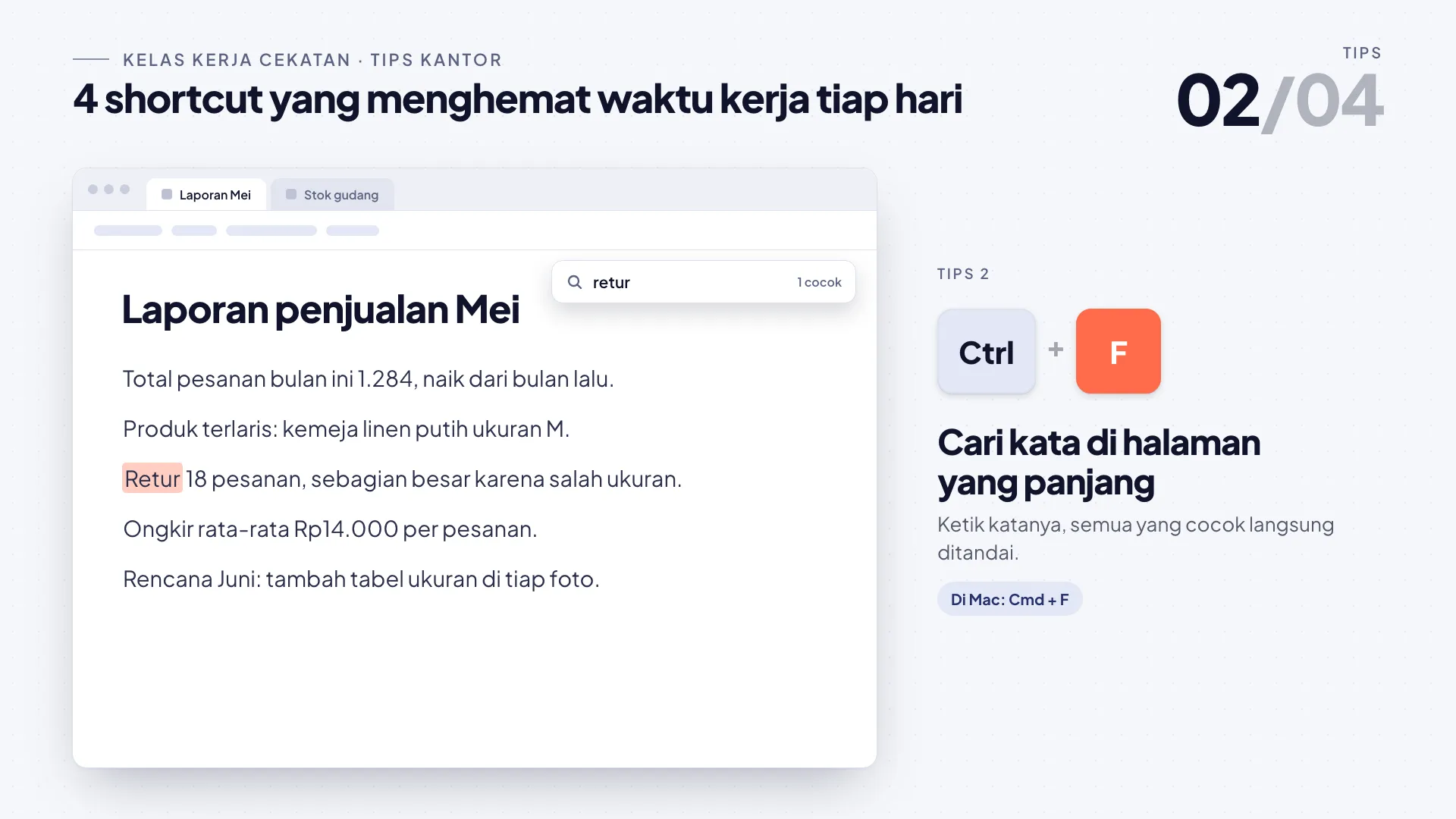
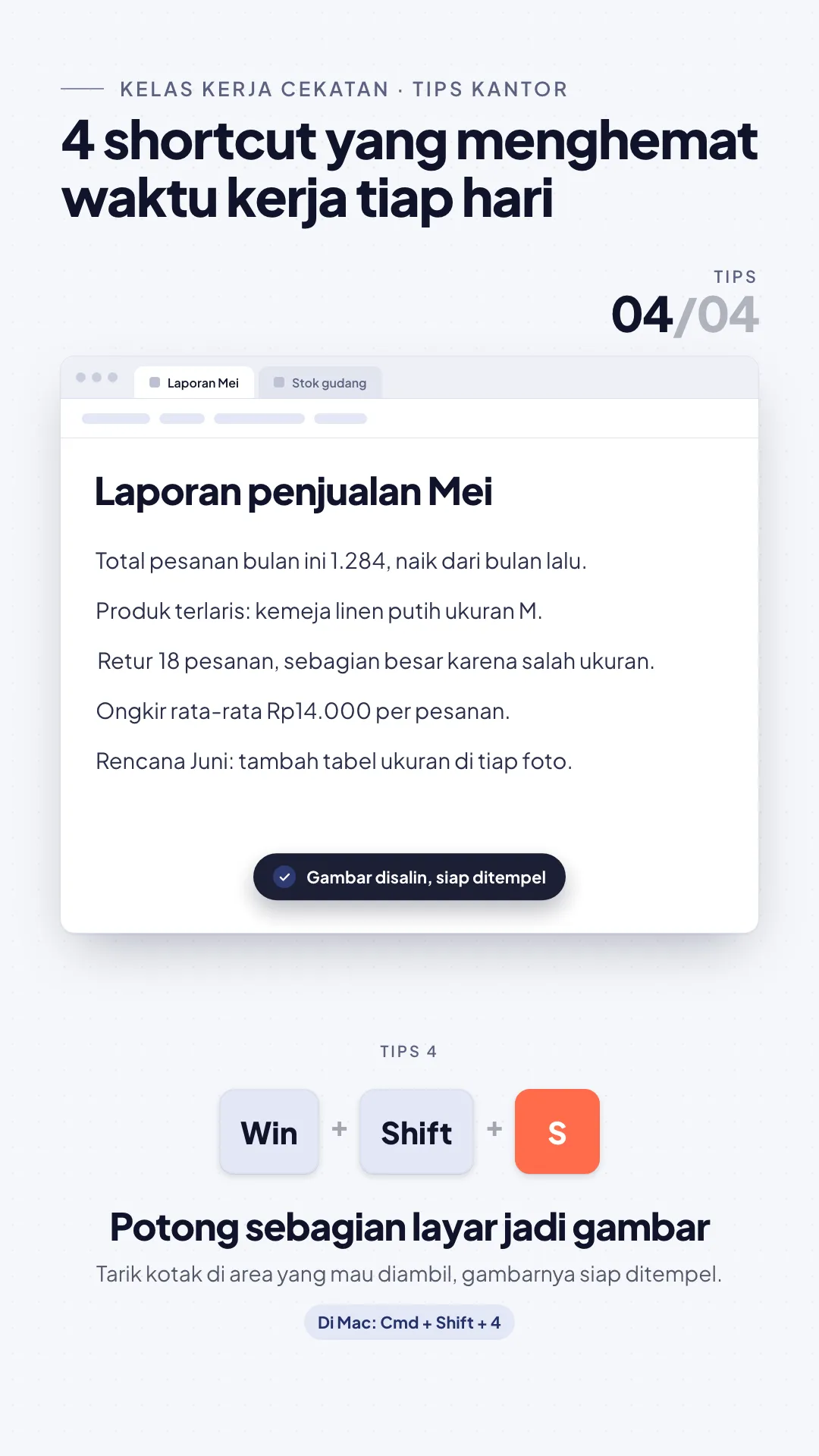
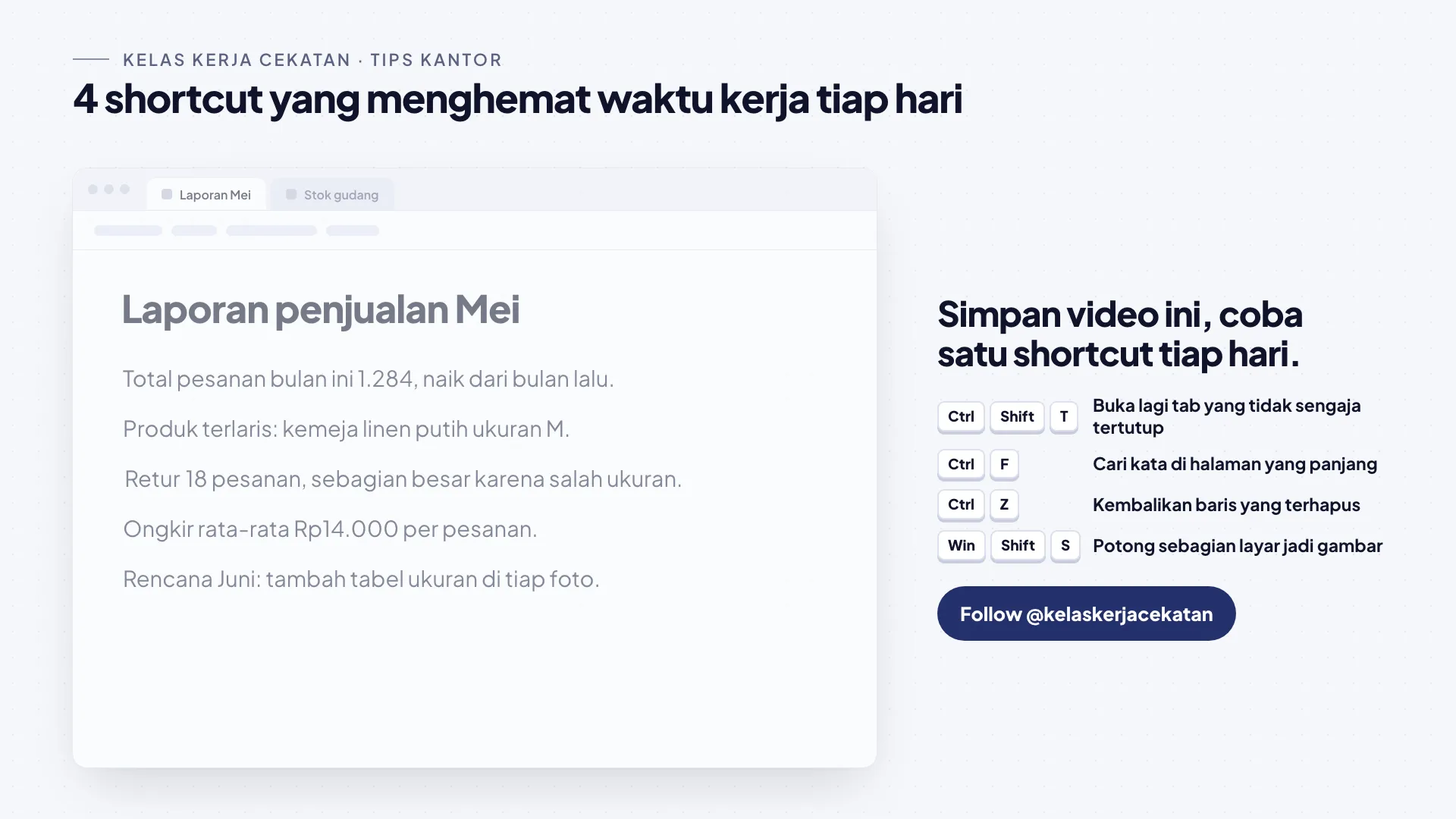
A productivity tip clip: keyboard keys appear large and are pressed in sequence, the last key lights up, and the result happens right away in a sample app window beside them: a closed tab comes back, a searched word is highlighted, a deleted line returns, the screen splits in two, or part of the screen is captured. Each tip shows the Mac keys too, and it ends with a list of every shortcut and a follow call to action. 3 to 5 tips, 16:9 and 9:16, 15 to 22 seconds.
Verified by SkillFlow
We checked every file in this skill automatically: no command that downloads and runs a program, no hidden code, no instruction telling your AI to ignore you.
- Loads from outside
- Fonts: Google Fonts
See the 5 files inside
skill.json8 KBSKILL.md7 KBprompt.md5 KBprompt.en.md5 KBfiles/scene.html33 KB
Checked 14 Nov 2026
Part of SkillFlow Pro
Pro opens every skill in every category: copy, ZIP, Send to AI, install, save, and request new skills.
Get Pro Already subscribed? Sign inWhat you get
- A tips script: 3-5 shortcuts, each with the keys, the Mac version, a benefit title, and one note
- An animated HTML scene driven by one config object: 3D keys pressed in sequence and a sample app window
- 8 on-screen results: a message, select all, a tab coming back, find a word, paste, undo, split screen, screen capture
- A closing list of every shortcut with mini keys and a follow call to action
- MP4 1920x1080 (16:9) or 1080x1920 (9:16), 30 fps, 15-22 seconds
- 3 ready video palettes, and the sample screen content (tabs, title, lines) can be changed
Good fit
- Teachers and creators who make work tips or computer tips content
- Online classes and computer courses that need short clips for promotion
- Company social media admins who share productivity tips with staff
- Office supply or computer accessory shops that want light educational content
Not for
- It does not record a real screen; the screen is an HTML sample, not your actual app
- It does not check whether a shortcut works in a specific app or system: test it before sharing
- Not a step-by-step tutorial with a cursor; use Laptop Screen Tutorial with Close-Ups for that
- No voice over; you add music yourself when rendering
About this skill
/tips-shortcut-keyboard Make a tips video with 4 shortcuts for online shop admins, Reels format, ending with a follow call to action for my class account
Show more
A productivity tip clip: keyboard keys appear large and are pressed in sequence, the last key lights up, and the result happens right away in a sample app window beside them: a closed tab comes back, a searched word is highlighted, a deleted line returns, the screen splits in two, or part of the screen is captured. Each tip shows the Mac keys too, and it ends with a list of every shortcut and a follow call to action. 3 to 5 tips, 16:9 and 9:16, 15 to 22 seconds.
User reviews
FAQ
What if my shortcut does not fit any of the eight result types?
Use the toast type: a short message appears in the window after the keys are pressed, for example Document saved or New window opened. It works for any shortcut whose result is hard to draw.
Can it show Mac keys only?
Yes. Put the Mac keys (Cmd, Option, Shift) in the main keys and leave the mac line empty, or rename the On Mac label to On Windows for the opposite version.
Which AI can I use it with?
Copy the prompt into a chat AI (ChatGPT, Claude, Gemini, DeepSeek): you get an HTML file; open it in Chrome and press Download MP4 (silent video, a minute or two to render); or download the ZIP and install it in an AI agent (Claude Code, Codex, Antigravity, Hermes Agent, Cursor, GitHub Copilot, Gemini CLI, OpenCode, Kimi Code, Trae), which then builds the files for you.
What is in the ZIP?
One folder named tips-shortcut-keyboard with SKILL.md (the instructions an AI agent reads) and the prompt, 5 files in all. Extract it into your agent's skills folder, or install it with npx skillflow-ai add tips-shortcut-keyboard. Pro only.
Is there a per-use fee or credits?
Not from SkillFlow. The skill runs on the AI you already use, so any cost follows that plan.
Which plan includes it?
SkillFlow Pro. It opens every skill in every category.
Can I use my own colours and brand?
Yes. Pick a colour theme on this page, or fill in your brand profile once; both go into the prompt you copy and into the ZIP.
Can I share what I made?
Pro members can upload the result and get a page at share.skillflow.ai.id to send to anyone. The page carries a small "Made with SkillFlow AI" mark.
Is there a download limit?
Yes, per day: 50 skills on Pro, 10 on other plans. Downloading a skill again on the same day does not count.